New inspection

Aircraft & owner

Enter the details once. This feeds directly into every report, invoice and logbook entry, so you never have to type the same tail number twice.

Registration

Aircraft photo

Powerplant & propeller

Engine

Propeller

Governor / magnetos / accessories

Times & meters

Appliance & component times

Inspection setup

Your color and logo are what the owner sees on his own page. The colors that mean something — airworthy, deferred, unairworthy — are fixed and are never branded, so a finding can never be dressed up as good news.

Shop branding

Put your logo here once. It prints at the top of every work authorization and every invoice, on every aircraft. Kept on this device.

Customer

Contact, billing, scheduling and the paper trail. Keep a record of what was actually said, so there are no surprises when it is time to pay.

Contact

Billing

blank = same as contact

Remember about him

Scheduling

Correspondence

Owner requests & squawks

Log each squawk while you still have him on the phone, or let him enter them himself from his own page. Every one has to be dispositioned before the report and the logbook entries will generate — so you never hear “hey, you forgot to look at my radio” when he picks the aircraft up.

Add a request

one per line

Pre-work walkaround

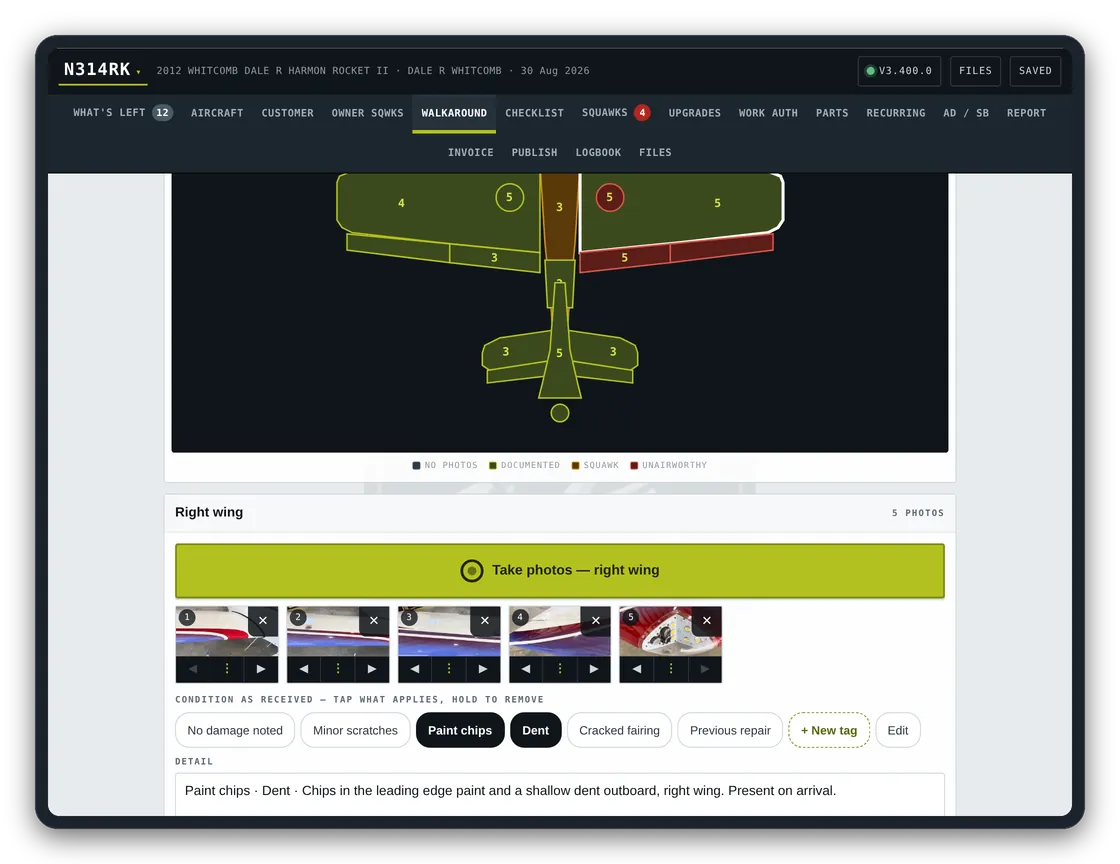
Do not buy his hangar rash. Tap a zone on the diagram and take the photograph to lock in the exact condition the aircraft arrived in. This is your condition-on-arrival record, and it is the cheapest insurance in the building.

no photos documented squawk unairworthy

Select a zone

Tap any part of the aircraft above to add photos and notes for that zone.

Data Plates & Identification

General / other photos

Inspection checklist

Which checklist

Squawks & discrepancies

Labor hours remaining

Corrected During The Inspection

Parts & consumables

Estimate summary

Recommended upgrades

Borescope survey

Totals

Work Authorization

Wording on the request

Request details

Everything below applies to the items only

Airworthiness items

Deferrable items

Upgrades — his answer

Approved — work to do

Declined — deferred to the owner

Estimate totals

Build and send

Build
Send whichever you built

Send the estimate straight to the owner by text or email — your own app opens with the request already written. For a long squawk list, send the PDF and let the message carry the summary; he reads the whole thing on his phone and tells you what to do and what to leave.

Record his approval

Build the request to preview it here.

Recurring inspections

Tracks your calendar and hour-based limits for you — due dates compute from the date or time complied. Verify each against the aircraft’s operating limitations, because an experimental in day VFR carries a lot less than an IFR machine.

AD & SB compliance

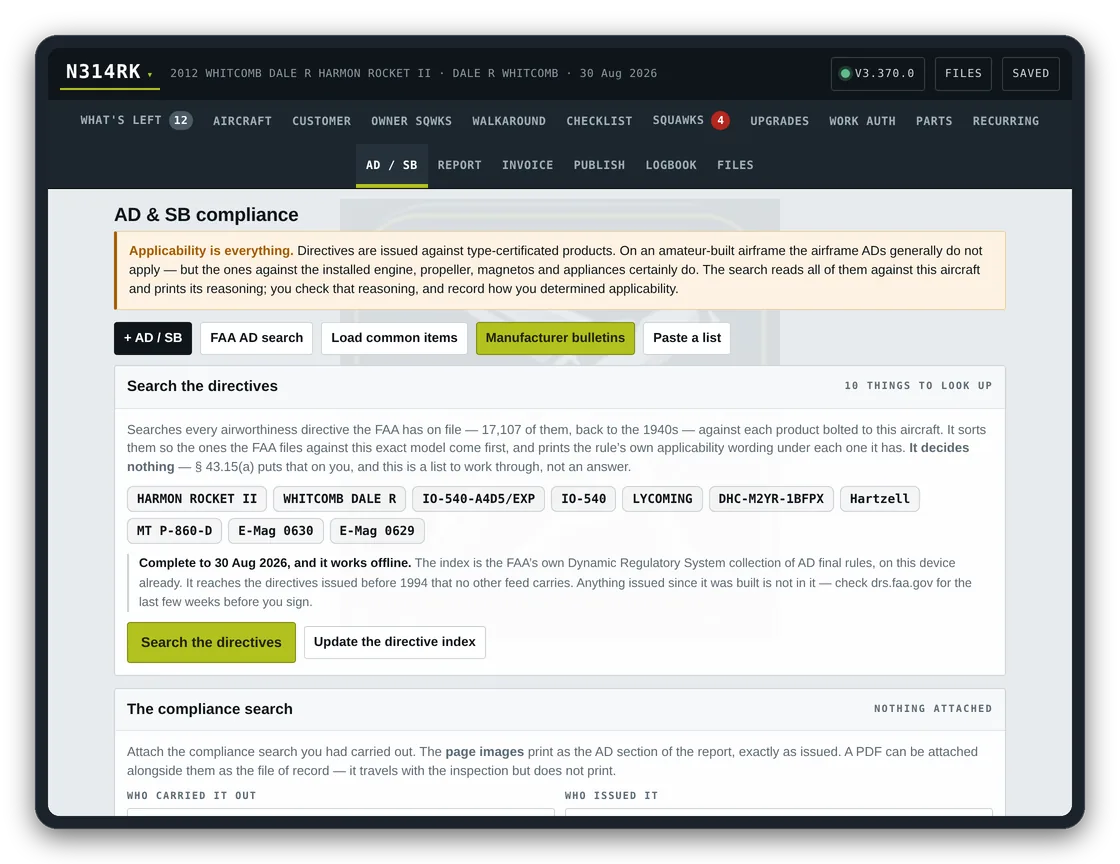
Applicability is everything. Directives are issued against type-certificated products. On an amateur-built airframe the airframe ADs generally do not apply — but the ones against the installed engine, propeller, magnetos and appliances certainly do. The search reads all of them against this aircraft and prints its reasoning; you check that reasoning, and record how you determined applicability.

Search the directives

The list for this type

The compliance search

Manufacturer service information

Printed in the report as a link the owner can follow, so the service information is one tap away instead of a hunt. Paste the page for the airframe the kit is based on — a Harmon Rocket II takes the RV-4 page. Give it a Van’s page and every Van’s-numbered bulletin below turns into a link to its own document page as well; paste a link on a bulletin to override that.

Research trail

AD compliance report

A standalone record of the directive research — what is outstanding, what was complied with and how, and what was assessed and found not to apply. Hand it to the owner or file it with the aircraft records.

Annual Condition Report

Report options

Build the report to preview it here.

Loading…

Invoice

Rates & terms

Rate library

Set your flat charge and your hourly rate by aircraft class, so you never underbill for your time. The class is set on the Aircraft page; changing it updates the flat charge unless you have typed over it. These rates are shared across every inspection file on this device.

Labor

Parts

Receipts

Flagging overages

Stop eating the cost of expensive parts. A part that lands above your estimate by more than either of these is flagged, so you can get his approval before you are stuck with the difference.

Payments received

Other charges & payments

Aircraft photo for the invoice

Totals

Build the invoice to preview it here.

Logbook entries

Every entry

Sticker output

On, the entries carry the heading, the times, your corrective actions and the certification \u2014 nothing else. Off, the app also writes routine lines it works out from the checklist, such as servicing the air filter or running the engine. Those are claims about work in a record you sign, so they are off by default. You are the mechanic of record; you decide what goes over your signature.

Readings in the heading

Which times print at the top of each entry. A reading you have not filled in never prints, whether it is ticked or not.

Add a line of your own

For anything that did not come from a squawk. It goes into the book you choose, above the certification, and stays there.

Generate to preview the sticker text.

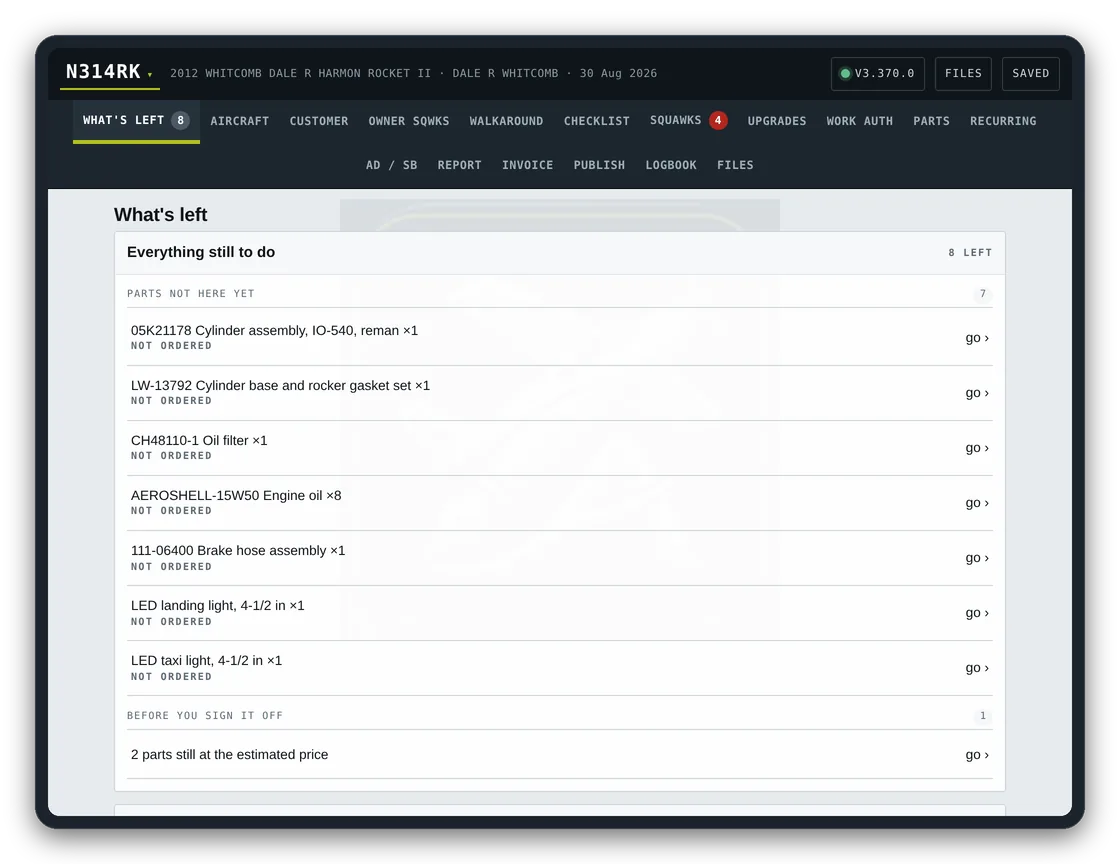
What's left

Everything still to do

How an inspection runs

Inspection files

Hangars have terrible wifi, so everything is stored on this device and keeps working at the far end of the ramp. Nothing here is on your other devices until you send it to Drive or export it — which is why the same aircraft can look different on the phone and on the computer.

Who has this inspection

A copy to fall back on

Backup status

Version

not checked

Access

who is signed in on this device

Google Drive

not connected

The aircraft you are working on is handled by Who has this inspection above — check it out to work on it, check it in when you are done. What is left here is for everything else.

Reminders

Your settings on every device

Your shop details, logbook wording, checklist wording, note and part libraries, rates and logo are shared through Drive, so they are the same wherever you work. This happens on its own \u2014 the buttons are for when you want it now.

Standard logbook wording

Checklist wording

If something looks wrong

File size

OCR engine

This device

Handing an inspection to another mechanic: press Send this inspection and pick AirDrop, Messages or Mail. Everything travels in that one file — aircraft, owner, checklist marks, squawks, photographs, estimates. He opens SquawkShop, goes to Files, presses Import, and picks up exactly where you left off. Import keeps whichever copy was edited most recently, so only one of you should be working on it at a time.

Lifeboat — print with nothing working

About SquawkShop

The built-in checklist bridges 14 CFR part 43 appendix D with the reality of maintaining everything from certified iron to RV-derived taildraggers — and you can load your own checklist for a type over the top of it. But remember what this is: a documentation aid, not an approved data source. You are the mechanic of record. The maintenance manual, the operating limitations, the manufacturers’ service information and your judgment govern the sign-off.